Windows · Venice AI · BYOK

Your screen and voice,
in the loop with AI

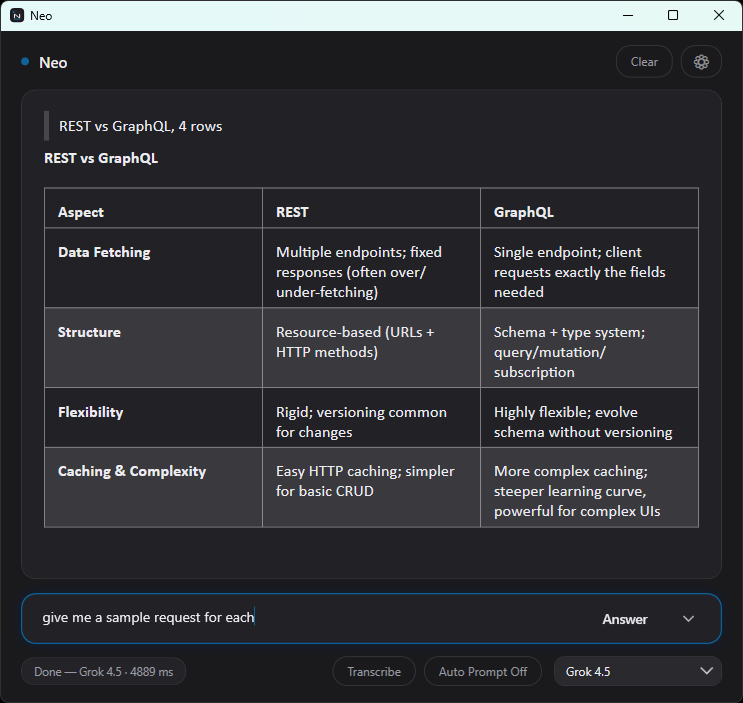
Neo is a dark, focused desktop workbench: streaming chat, region screenshots, live transcription, auto-prompt, and one-click HTML visualizations — powered by your own Venice API key.

Free to start · Bring your own key · No account required in the app

Built for real desktop work

Not another browser tab — a native Windows companion that sees what you see and hears what you hear.

Streaming chat

Fast multi-turn chat with selectable Venice models. Markdown rendering, code copy, and a clean dark UI.

Screen capture

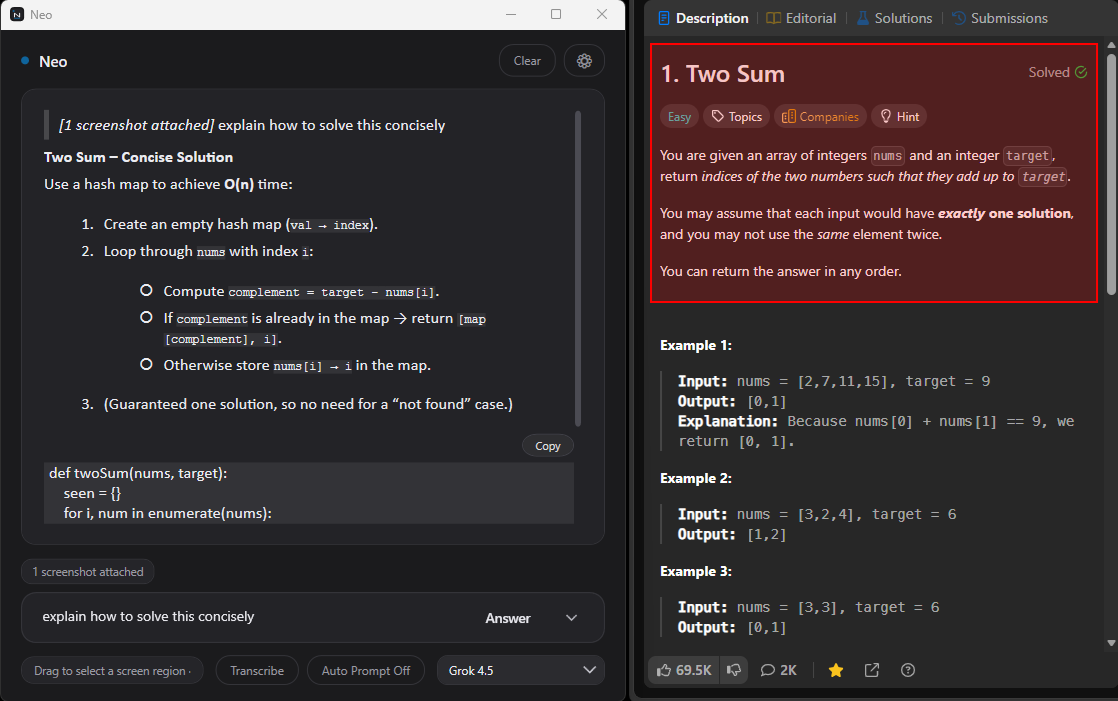
Global hotkey region select. Attach screenshots to your next message for vision-aware answers.

Live transcription

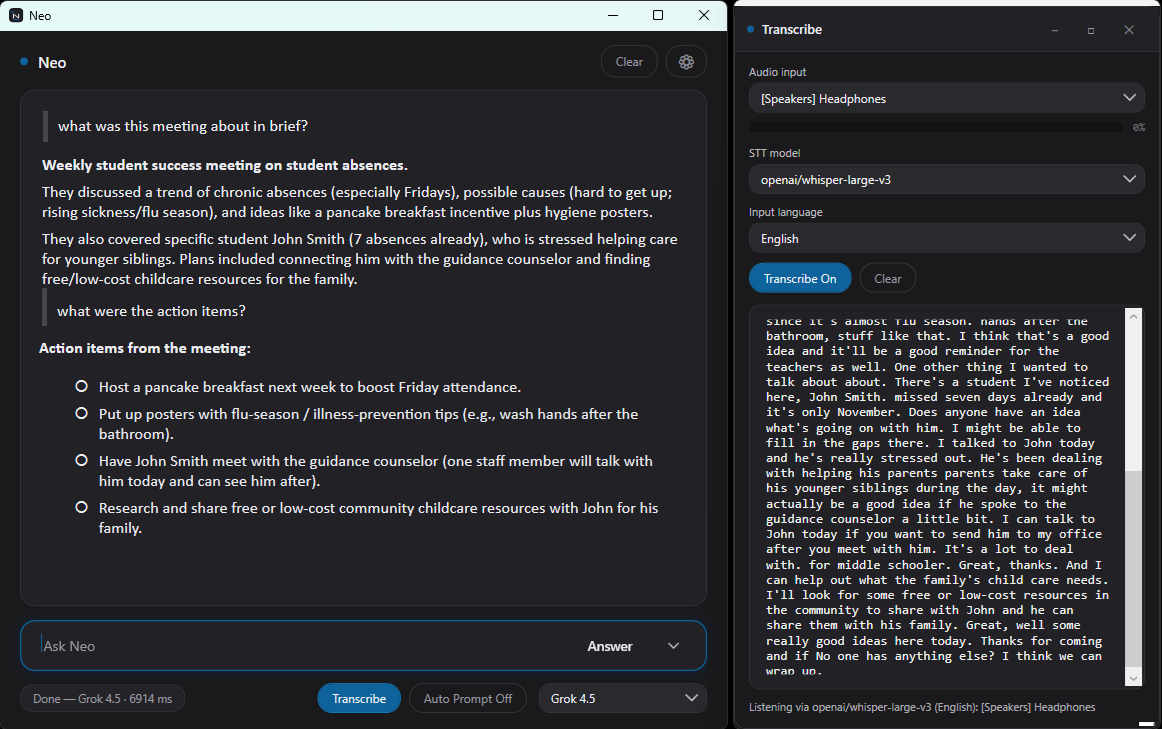
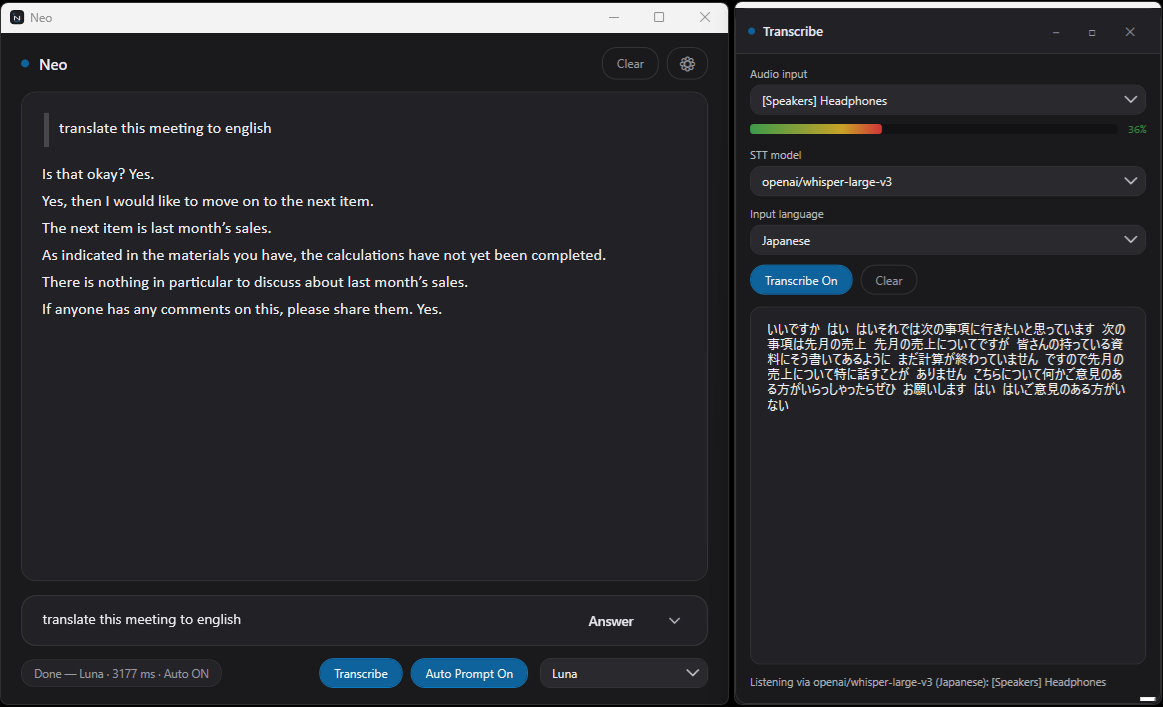
Mic or system loopback → chunked speech-to-text. Editable transcript feeds straight into chat.

Auto Prompt

Hands-free mode: when the transcript or screenshots change, Neo can send on a short interval.

Visualize

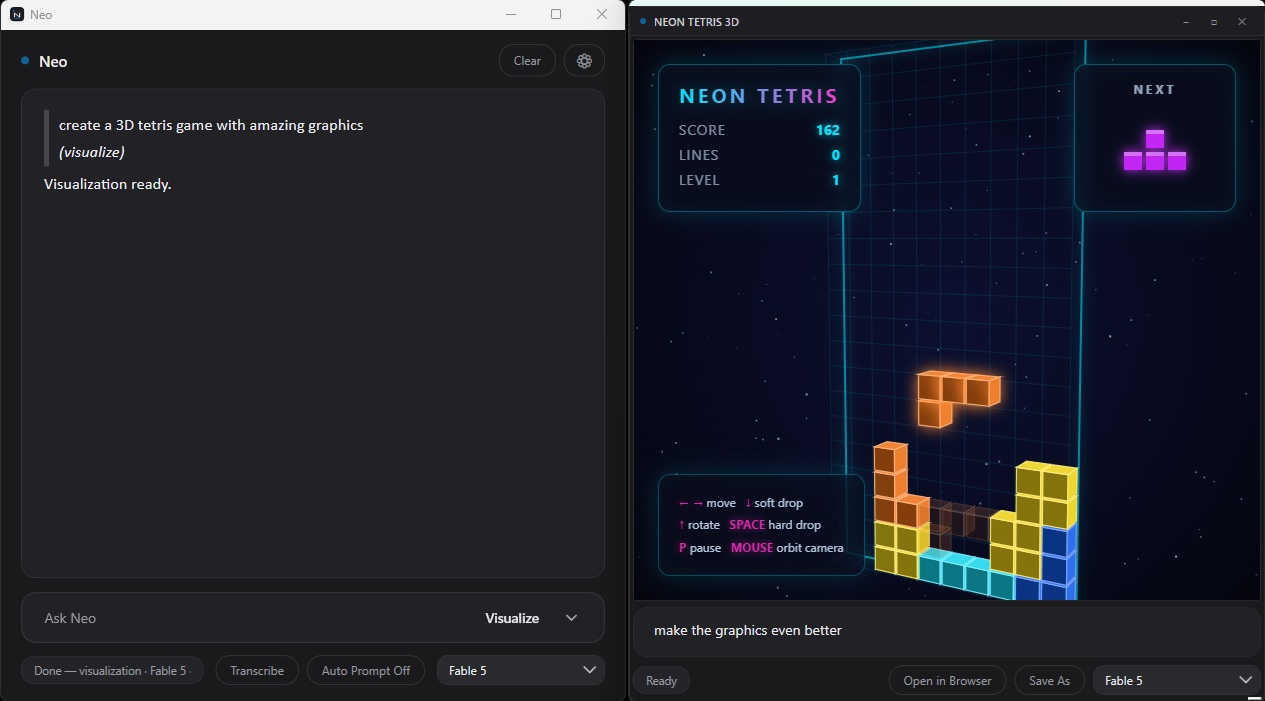
Flip to Visualize and get dark-theme HTML/JS pages in a dedicated window — refine until it’s right.

🔑

Bring your own key

Venice API, your credentials. Onboarding walks you through setup; keys stay on your machine.

How it works

Three steps from install to in the flow.

  1. 1

    Install Neo

    Run the Windows installer. Neo lives as a normal desktop app with Start Menu entry.

  2. 2

    Add your Venice key

    First launch opens a short BYOK welcome. Paste your Venice API key — or open Settings anytime.

  3. 3

    Capture, talk, visualize

    Chat normally, grab screen regions, turn on transcription, or switch Answer → Visualize for interactive HTML.

Made for moments like these

Interviews & coding screens

Capture the prompt, hear the room, get structured help without leaving your flow.

Meetings & calls

Loopback transcription + auto-prompt keeps Neo current while you stay on the call.

Explain & prototype

From a rough idea to a dark interactive page you can refine and open in the browser.

Download

Get Neo for Windows

Installer for 64-bit Windows. Bring your own Venice API key. Requires the .NET 10 Desktop Runtime (x64). Visualizer also needs the WebView2 Runtime (already on most Windows 11 PCs).

Download NeoSetup.msi v1.0.1 · win-x64

Unsigned builds may show SmartScreen — choose More info, then Run anyway. Uninstall anytime from Windows Settings → Apps.

  • Per-machine install via MSI
  • Requires .NET 10 Desktop Runtime
  • Settings stored in %LocalAppData%\Neo